
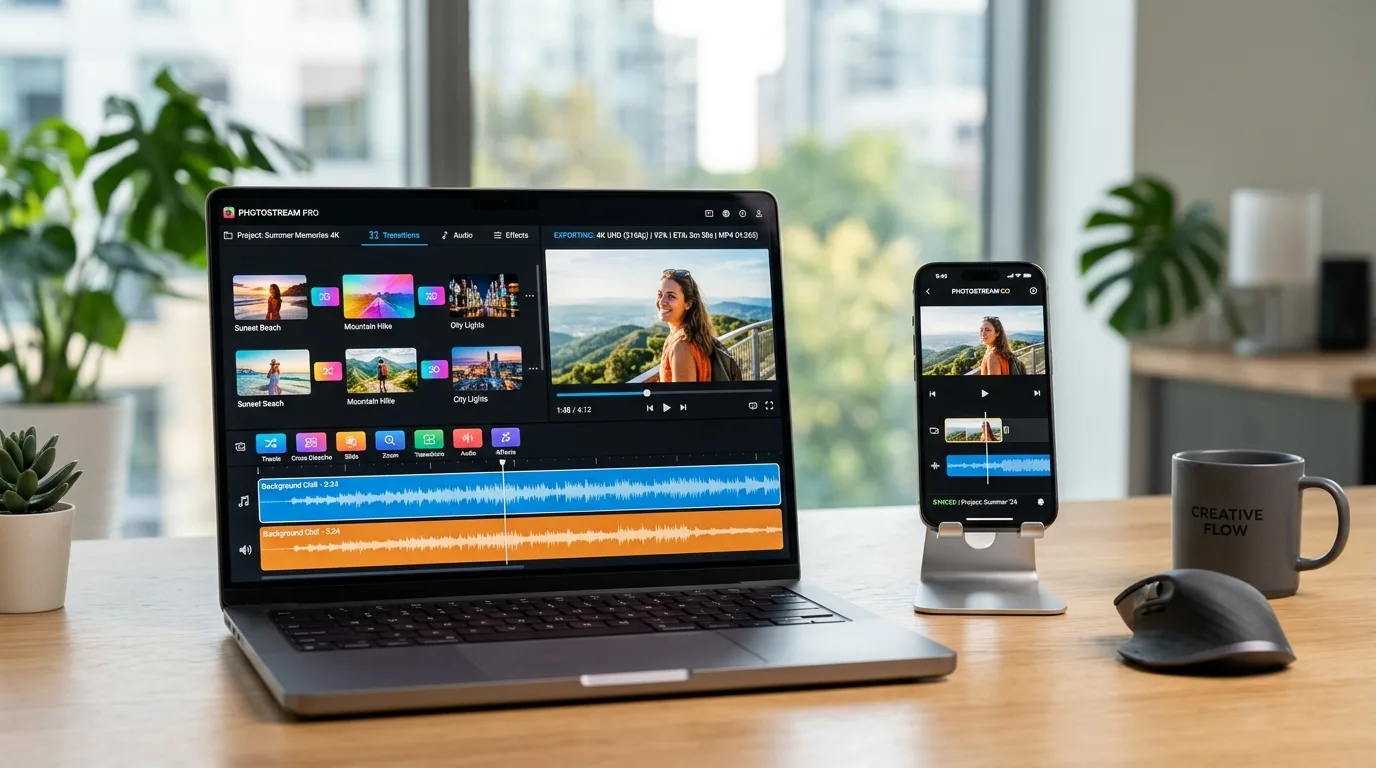
Do you remember the last time you scrolled through a social feed and paused for a beautiful photo montage? Those smooth transitions, the perfect music beat, and the emotional storytelling grab attention instantly. In 2026, creating professional-quality slideshows no longer requires expensive software or days of editing. Whether you want to share vacation memories, promote a product, or celebrate a wedding, the right slideshow app turns your static photos into a captivating video in minutes.
But with hundreds of apps claiming to be the best, where do you start? Some focus on speed and simplicity, others pack advanced timeline editing, 4K exports, and AI-assisted design. You need a clear guide that separates truly useful tools from gimmicks. This article reviews the top free and professional photo slideshow apps for 2026. You will discover which app fits your skill level, device, and budget. We also share a step?by?step workflow to create stunning videos that keep viewers watching until the last frame.
Want to make your photos shine before turning them into a slideshow? Our professional photo retouching service enhances every detail get a free quote today and start with flawless images!
Why Use a Photo Slideshow App in 2026?
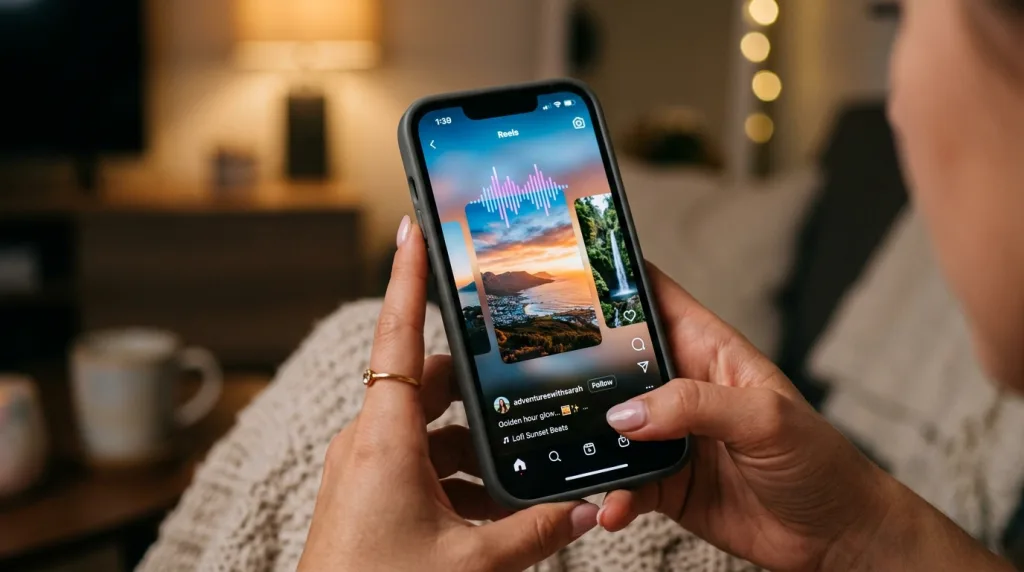
People consume video content more than ever. A single slideshow video on Instagram Reels or TikTok can generate thousands of views. But you don’t need a film degree to produce engaging clips. Modern slideshow apps combine automation with creative controls. You select your photos, choose a template, add music, and the app synchronizes the visuals to the beat.
These tools also solve a common problem: plain photo galleries bore viewers. A slideshow adds motion, pacing, and narrative flow. You control how long each image stays on screen, which transition effect appears, and whether to zoom or pan. Many apps now support text overlays, stickers, and even voice narration.
Businesses benefit equally. Real estate agents create virtual tours. E?commerce brands produce product highlights. Educators build visual lessons. And because most apps export directly to MP4, you can upload the final video anywhere YouTube, Facebook, your website, or email campaigns.
Another advantage: speed. Ten years ago, making a slideshow meant juggling five different programs. Today, you finish a high?quality video in under ten minutes. The best apps in 2026 also handle high?resolution images without crashing. You retain original quality, even when exporting in 4K.
Finally, cost. Many powerful slideshow makers remain free. They include watermarks or limit export resolution, but for personal use, that’s often enough. Professional apps offer one?time purchases or affordable subscriptions, far cheaper than hiring a video editor.
Top Free Photo Slideshow Apps for Beginners
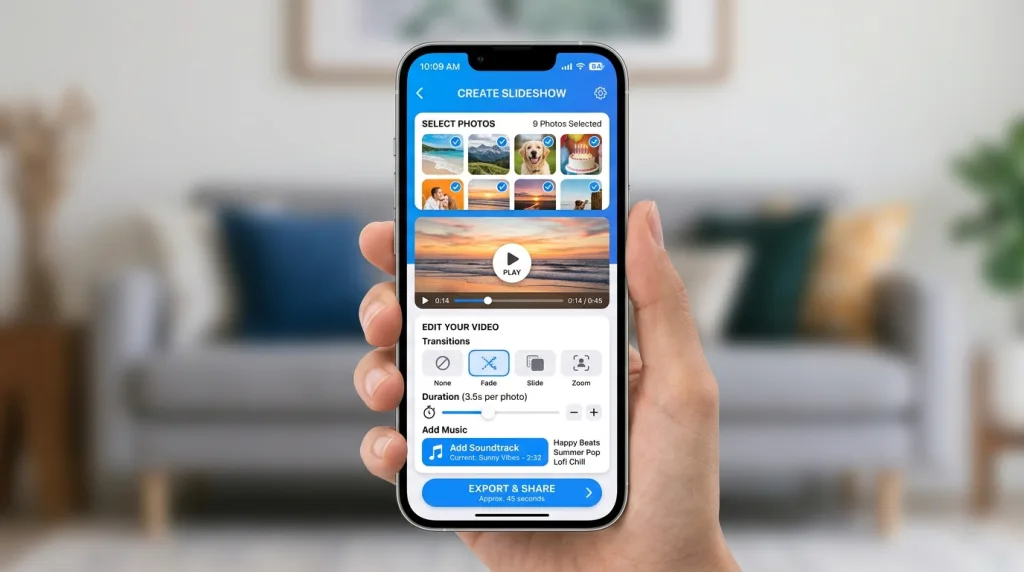
If you have never made a slideshow before, start with these free options. They provide drag?and?drop interfaces, built?in music libraries, and instant previews.
1. Canva (Free + Paid)
Canva dominates the design world, and its slideshow feature shines. You don’t need to download anything use the web version or mobile app. Choose “Video” as your format, upload your photos, and pick a template. Canva automatically arranges images with smooth transitions. You can adjust timing, add text animations, and overlay royalty?free music.
The free version exports videos up to 1080p, with a small Canva watermark. Remove the watermark with a Pro subscription (around $12.99/month). Canva also offers massive stock photo libraries and video elements.
Best for: Social media marketers, teachers, and casual users who want beautiful templates without learning curves.
2. CapCut (Completely Free)
ByteDance’s CapCut became a powerhouse for short?form video editing. Its slideshow feature works seamlessly. Import multiple photos, tap “Slideshow,” and the app creates a rhythmic sequence. You can fine?tune every transition, apply keyframe zoom effects, and sync clips to music tracks from its extensive audio library.
CapCut exports in 4K at 60fps without watermarks. It also includes automatic captions, color grading, and masking tools. The mobile version feels snappy, and a desktop version exists for Windows and Mac.
Best for: TikTok and Instagram creators who need advanced editing without spending money.
3. InShot (Free + Premium)
InShot started as a video editor, but its photo slideshow mode works wonderfully. You load images, adjust duration per slide, and choose from over 100 transition effects. The app provides a vast music collection, voiceover recording, and canvas resizing for different platforms (9:16 for Stories, 16:9 for YouTube).
Free exports include an InShot watermark. Remove it with a one?time payment of about $5.99. The interface feels intuitive, and you can add stickers, text, and filters easily.
Best for: Mobile users who want precise control over aspect ratios and fast editing on the go.
4. Google Photos (Free with storage limits)
Many people overlook Google Photos’ movie maker. Open the app, select your images, and tap “Create” → “Movie.” Google offers theme?based templates (“Memories,” “Love,” “Travel”) that automatically pick transition styles and background music. You cannot manually adjust transitions, but the result looks polished enough for family albums or casual sharing.
Exports go up to 1080p, with no forced watermark. However, you need sufficient Google storage (15GB free, then paid plans). The movie feature works best when you lack time to edit manually.
Best for: Quick personal slideshows and anyone already using Google Photos for backup.
Professional Slideshow Makers for Creators and Businesses
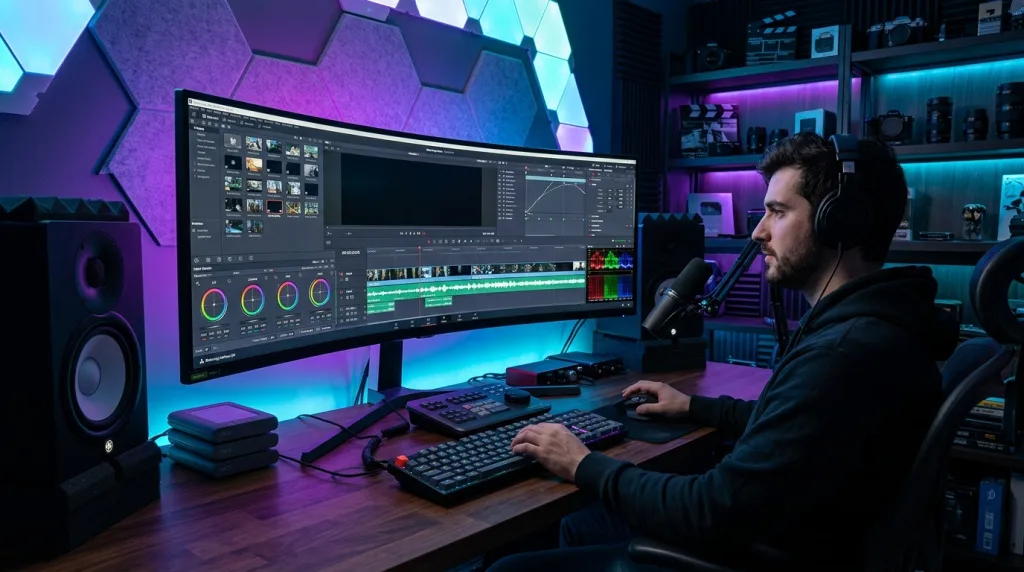
When you need commercial?grade quality, custom branding, and advanced timeline controls, invest in professional software. These tools justify their price with precision features.
1. Adobe Express Premium (Subscription)
Adobe Express (formerly Adobe Spark) bridges simplicity and professional output. You access thousands of Adobe Fonts, stock photos, and motion graphics. The slideshow workflow: pick a storyboard layout, drop images, and let Adobe’s AI align transitions to music beats. You can also edit individual frames with Photoshop?like adjustments.
Premium costs $9.99/month or bundled with Creative Cloud. Exports support 4K, and you remove all Adobe branding. Teams can collaborate on slideshows in real time.
Best for: Agencies, freelancers, and businesses that need consistent brand colors and fonts across videos.
2. KineMaster (Free Trial + Paid)
KineMaster offers a full multi?track timeline, even on mobile. You place photos on separate layers, add background video, and keyframe motion effects. The slideshow presets automatically create Ken Burns effects (slow zoom and pan). You can also record voiceovers directly while watching the preview.
The free version leaves a watermark and limits exports to 1080p. A monthly subscription ($4.99) removes the watermark and unlocks asset store content. KineMaster works on Android, iOS, and now ChromeOS.
Best for: YouTubers and intermediate editors who want timeline control without switching to a desktop.
3. CyberLink PowerDirector (One?time purchase on desktop)
PowerDirector for Windows and Mac packs features found in expensive video editors. The “Slideshow Creator” wizard asks for your photos, music, and style. Within seconds, it builds a video with motion tracking on faces, automated transitions, and beat?synchronized effects. You can further tweak everything: keyframes, chroma key, and even AI upscaling for old photos.
A perpetual license costs around $69.99. Mobile versions exist but offer fewer features. PowerDirector exports to H.264, HEVC, and even GIFs.
Best for: Desktop users who prefer a one?time purchase and powerful automation.
4. ProShow Gold (Windows only)
ProShow Gold remains a legend among slideshow specialists. Unlike general video editors, ProShow focuses entirely on photo motion. You control slide duration, transition overlaps, and soundtrack mixing. The software supports 50+ transition styles with independent audio per slide. You can also create DVD menus and 4K Blu?ray discs.
The price is $69.95 (one?time). The interface looks dated, but the output quality rivals any competitor. ProShow does not offer a Mac version.
Best for: Event photographers, wedding videographers, and long?form slideshows (hundreds of images).
Mobile vs Desktop Slideshow Apps – Which One Suits You?
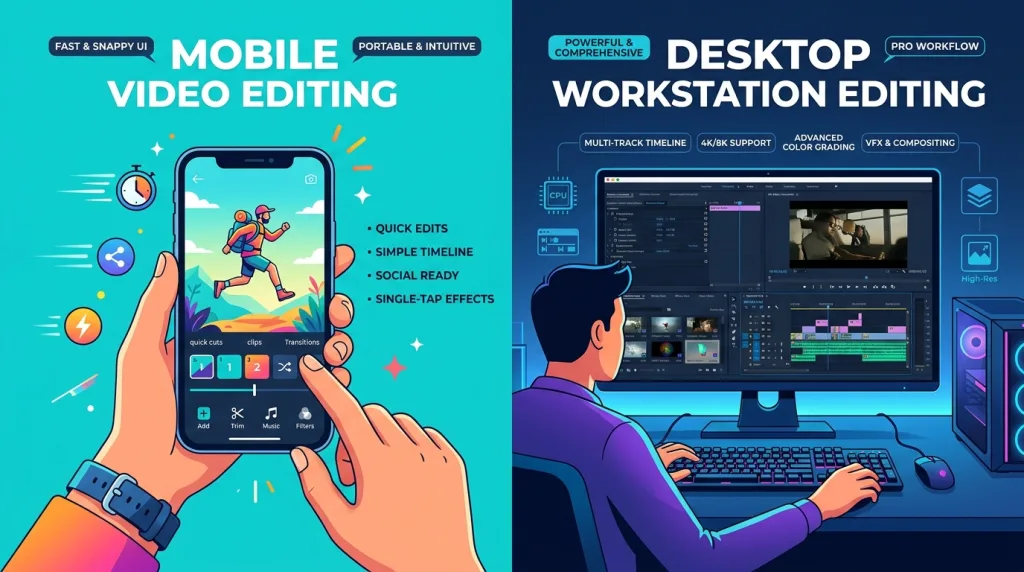
Choosing between mobile and desktop depends on your workflow and output needs.
Mobile apps (CapCut, InShot, Canva mobile) let you shoot, edit, and publish from one device. You snap pictures with your phone, open the app, and produce a video while waiting for coffee. Mobile apps excel at social media formats (vertical 9:16). They also integrate directly with your camera roll and sharing menus. The main drawback: smaller screen real estate makes fine adjustments fiddly. Also, processing 50+ high?resolution images drains battery and may slow down older phones.
Desktop software (PowerDirector, ProShow, Adobe Express web) provides larger preview windows, precise timeline scrubbing, and faster export times. Managing hundreds of photos feels easier with a mouse and keyboard. Desktop versions usually support higher bitrates and more codecs. The trade?off: you cannot edit on the go, and you need a laptop or PC with sufficient RAM.
Our recommendation: Use mobile apps for quick, daily?drive slideshows under 30 images. Switch to desktop for client work, long presentations, or any project requiring exact frame?by?frame control. Many creators combine both they rough?cut on mobile, then fine?tune on desktop.
Key Features to Look for in a Slideshow Maker
Before downloading an app, evaluate these five features. They separate mediocre tools from genuinely useful ones.
1. Transition variety – Look for at least 20 transitions (fade, zoom, slide, wipe, morph). Avoid apps that only offer cross?fade.
2. Music synchronization – The best apps automatically detect beats and align photo changes to them. This creates a professional rhythm without manual tweaking.
3. Text and title overlays – You need customizable fonts, colors, and animation for titles, captions, and credits.
4. Export resolution – Minimum 1080p. 4K support matters if you plan to display on large screens or crop for different platforms.
5. No watermarks (or removable) – Free watermarks hurt credibility for business use. Choose apps that let you pay once to remove them.
Additionally, check if the app supports batch importing, image cropping without losing quality, and direct upload to YouTube or TikTok. Some apps also offer cloud storage so your project syncs across devices.
Remove messy backgrounds from your product photos before slideshow creation – try Photofixal’s background removal service for clean, professional results. Your viewers will thank you.
How to Create a Stunning Photo Slideshow – Step by Step Guide
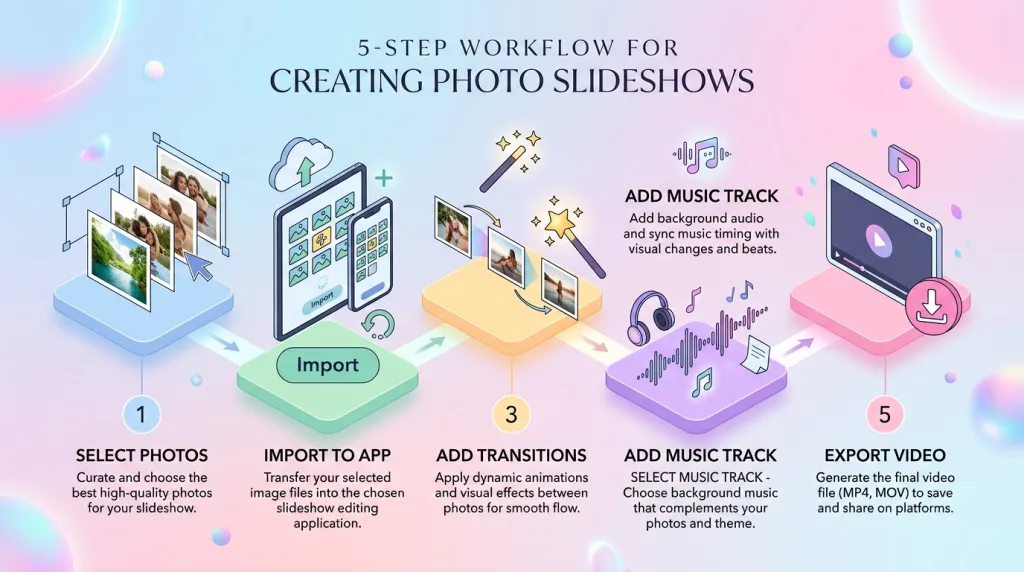
Follow this active?voice workflow. Each step builds on the previous one, and you finish with a share?ready video.
Step 1: Select and enhance your photos. Open your gallery and pick 15?25 images that tell a story. Delete duplicates and blurry shots. Then enhance each photo: adjust brightness, contrast, and saturation. For product or portrait slideshows, consider photo retouching to remove blemishes or wrinkles.
Step 2: Choose your slideshow app based on your device. Download a free app from our list above if you just start. Professionals install PowerDirector or Adobe Express.
Step 3: Import photos in order. Most apps let you drag to reorder. Place your strongest image at the start to hook viewers. End with a memorable shot or call to action.
Step 4: Set slide duration. For slow, emotional music, use 4-5 seconds per image. For upbeat tracks, 2-3 seconds works better. Avoid faster than 1.5 seconds viewers won’t process the image.
Step 5: Apply transitions consistently. Pick two or three transition styles at most. Overusing different transitions looks chaotic. A simple cross fade plus occasional zoom creates elegance.
Step 6: Add background music. Use royalty-free tracks from the app’s library or upload your own. Lower the music volume to -20dB if you add voiceover. Ensure the track length matches your slideshow; trim or loop as needed.
Step 7: Insert text overlays (sparingly). Add a title slide at the beginning and a “Thanks for watching” slide at the end. Avoid placing text over faces or important details.
Step 8: Preview and export. Watch the entire slideshow twice. Look for awkward cuts, misaligned music beats, or overexposed photos. Export in the highest resolution your app allows. Use MP4 format for universal playback.
Step 9: Share strategically. Upload to YouTube with keywords in the description. On Instagram, post a 30?second teaser and link to the full version in your bio.
Best Apps for Specific Use Cases
Not every slideshow needs the same tool. Here is a quick reference for common scenarios.
Social media stories (Instagram, Facebook, Snapchat) – Use Canva or CapCut. Both support vertical 9:16 canvas, stickers, and text animations. CapCut’s auto?captioning boosts engagement.
Real estate property tours – PowerDirector or ProShow Gold. You can overlay floor plans, add slow pans of room photos, and synchronize to calm background music. Export in 4K for virtual tours.
Wedding or anniversary videos – Adobe Express Premium offers romantic templates with soft transitions. KineMaster allows you to layer two photos for “then and now” effects.
E?commerce product showcases – InShot or CapCut. Use the zoom transition to highlight details. For complex products requiring multiple angles, combine with multi?clipping path service to isolate each part before slideshow assembly.
Educational presentations – Google Photos movie maker (quick) or PowerDirector (detailed). Add text overlays explaining each step, and use voiceover to narrate.
Brand marketing reels – Adobe Express. You can brand your slideshow with logos, colour palettes, and custom fonts. Export in multiple aspect ratios for different platforms.
Tips to Optimize Your Slideshow for SEO and Engagement
Your slideshow video can rank on Google and YouTube if you follow these optimisation practices.
Write a descriptive title – Include your main keyword naturally. Example: “10 Best Beach Destinations | Photo Slideshow 2026” instead of “My Vacation.”
Create a custom thumbnail – Do not let YouTube auto?select a frame. Design a thumbnail with large text and a smiling face. Contrasting colors increase click?through rates.
Add closed captions – Many viewers watch without sound. Use apps like CapCut to auto?generate captions, then edit any errors.
Include a transcript in the description – Write 200?300 words summarising the slideshow’s content. Use bullet points for key moments. Search engines index this text.
Time your video length wisely – For social media, stay under 60 seconds. For YouTube, 2?4 minutes retains attention best. Longer slideshows need narrative variation (music changes, text slides, etc.).
Use chapters – If your slideshow exceeds two minutes, add timestamp chapters in the description. Viewers jump to sections they care about, improving watch time.
Promote across channels – Embed the slideshow on your website using an HTML5 video tag. Share short clips as Stories. Link back to the full video.
Also, before exporting, ensure your images have clean backgrounds. For e?commerce slideshows, a cluttered background distracts from the product. Services like image masking help you isolate complex subjects (hair, fur, transparent objects) for a crisp, professional look.
Frequently Asked Questions (FAQ)
1. Which photo slideshow app is completely free without watermarks?
CapCut offers 4K exports with zero watermarks, even in its free version. Google Photos also produces watermark?free slideshows, but you sacrifice manual transition control.
2. Can I add my own music to slideshow apps?
Yes. Most apps allow you to import MP3 or M4A files from your device. Ensure you own the rights to that music if you publish publicly. Apps like InShot and KineMaster also provide royalty?free libraries.
3. What is the best slideshow app for a 500+ photo project?
Use desktop software: ProShow Gold or PowerDirector. Both handle large batches without crashing. They also offer timeline caching and proxy editing for smooth performance.
4. How do I remove the background from a person or product for my slideshow?
You can use an app’s cutout tool (CapCut has a smart cutout), but for flawless results on complex edges, use a dedicated background removal service. Download the transparent PNG and place it over a new background in your slideshow.
5. Do slideshow apps reduce image quality?
Most apps let you adjust export bitrate. Always choose the highest setting (e.g., “High” or “Maximum”). CapCut and PowerDirector preserve original resolution if you disable auto?compression.
6. Can I make a vertical slideshow for TikTok or Reels?
Absolutely. InShot and Canva let you set a 9:16 canvas. CapCut defaults to vertical when you choose “Slideshow” from the project start. Crop your photos to fit, or add a blurred background extension.
7. What’s the ideal slideshow length for a product demo?
Keep product slideshows between 30 and 45 seconds. Show the product from three angles, highlight two key features, and end with a clear “Buy now” text slide. Any longer, and viewers drop off.
8. How do I add a ghost mannequin effect to clothing photos before using them in a slideshow?
For apparel e?commerce slideshows, the ghost mannequin effect makes clothing look three?dimensional and hollow?man style. Use Clipping Expert Asia’s ghost mannequin service to prepare your product photos. Then import the cleaned images into any slideshow app for a consistent, professional catalog video.
Conclusion
Creating a stunning photo slideshow in 2026 has never been easier. Free apps like CapCut and Canva deliver remarkable quality for personal projects and social media. Professionals turn to PowerDirector or Adobe Express for timeline precision and brand control. The right choice depends on your device, budget, and the story you want to tell.
Remember: great slideshows start with great photos. Enhance your images before you ever open an app. Remove distracting backgrounds, correct colours, and retouch any imperfections. Then let the slideshow software do the heavy lifting of transitions, music syncing, and exporting.
Start with five photos today. Pick one app from our list, follow the step?by?step guide, and publish your first video by tomorrow. Each slideshow you create improves your storytelling skills. And as you grow, you can always upgrade to more advanced tools.
Ready to create a viral?worthy slideshow? Let Vastcope handle your photo editing needs from color correction to cropping so you focus on storytelling. Transform ordinary images into unforgettable motion today.
Keep reading
All articles
Photography Basics: The Complete Beginner’s Guide
Entering the World of Photography The Magic of Capturing Light Photography combines science, art, and personal vision into a single press of…
Read article
Adobe Express Background Remover Complete Guide for Creators
The Ultimate Guide to the Adobe Express Background Remover Creating stunning visual content requires clean, distraction-free imagery. Whether you design marketing materials,…
Read article
What Size Is a Wallet Photo? Standard Dimensions Explained
You pull out your wallet to show a loved one’s picture, but the photo slides around loosely because it’s the wrong size.…
Read article