

Google Analytics serves as the central hub for your website’s performance data. When you partner with a marketing agency, hire an in-house analyst, or collaborate with web developers, you must grant them access to this data. Sharing your login credentials poses a massive security risk and violates fundamental data governance policies. Instead, you need to share access securely through the platform’s built-in user management system.
Adding users to Google Analytics 4 (GA4) requires a few precise clicks, but understanding the hierarchy and permission levels ensures you protect your sensitive business data. Granting the wrong permissions can lead to accidental data deletion, unauthorized configuration changes, or compromised user privacy.
Need help improving your website visibility? Explore our SEO services to build a stronger organic search strategy.
This guide breaks down exactly how to share Google Analytics access, how to assign the correct user roles, and how to troubleshoot common user management issues.
Understanding Google Analytics 4 (GA4) Account Structure
Before you invite a user to your analytics dashboard, you must understand how Google structures its data hierarchy. Google Analytics uses a specific tier system to organize websites and apps. Knowing the difference between these tiers prevents you from accidentally sharing data across multiple unrelated websites.
The Account Level
The Account serves as the highest level of organization within Google Analytics. A single Google Analytics Account can hold multiple properties. For example, a parent corporation might use one Account to house the individual websites for five different subsidiary brands. If you grant someone access at the Account level, they automatically gain access to every single property housed within that account. You should only give Account-level access to senior stakeholders, founders, or top-level administrators.
The Property Level
A Property represents a single website, blog, or mobile application. If you operate an e-commerce store and a separate corporate blog, you likely track them as two distinct properties. When you hire an SEO agency or a freelance writer for one specific website, you should only grant them access at the Property level. This restricts their view to the exact data they need while keeping your other digital assets private.
Integrating analytics data accurately forms the foundation of any successful digital strategy. When you conduct a comprehensive website audit guide , accurate GA4 data ensures you identify the right traffic bottlenecks and conversion drop-offs.
Deciphering GA4 User Roles and Permissions

Google Analytics 4 features a robust, role-based permission system. When you invite a new user, you must assign them a specific role. These roles operate on a principle of escalating privileges, meaning each higher tier includes the capabilities of the tiers below it.
Assigning the correct role is critical for data security. If you assign a data-entry intern the “Administrator” role, they have the power to delete the entire property.
Want to know who is behind these insights? Learn more about our team and how we drive digital success .
Here is a complete breakdown of the standard GA4 user roles:
| User Role | Capabilities & Limitations | Best Used For |
| Administrator | Possesses full control over the account or property. Can add/remove users, delete properties, link Google Ads, and manage all settings. | Business owners, IT directors, and primary agency partners. |
| Editor | Can edit property settings, create custom events, set up conversions, and link external tools. Cannot manage user access. | SEO managers, marketing directors, and analytics specialists. |
| Marketer | Can edit audiences, conversions, and attribution models. Cannot change system-level property settings. | PPC specialists, email marketers, and ad buyers. |
| Analyst | Can create, edit, and share custom explorations and dashboards. Cannot alter property settings or events. | Data analysts, content strategists, and reporting teams. |
| Viewer | Can view reports and data. Cannot alter any settings, create events, or share custom explorations. | Freelance writers, junior staff, and peripheral stakeholders. |
| None | The user has no access to this specific property, though they might have access to others in the account. | Removing access during employee offboarding. |
How to Share Google Analytics Access (Step-by-Step)
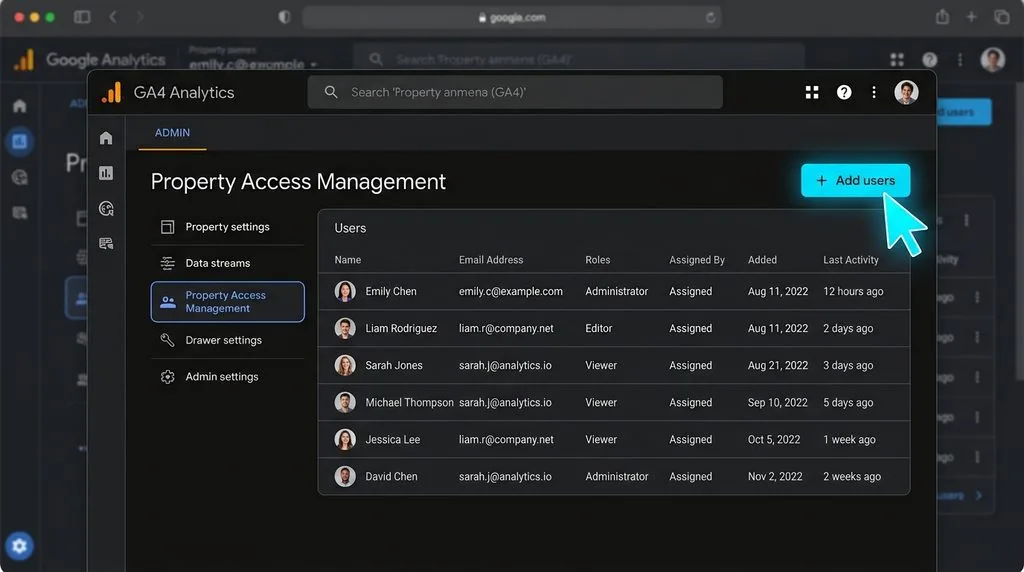
You can share access to your Google Analytics dashboard in less than two minutes once you know where to look. Google updated its interface significantly when it transitioned from Universal Analytics to GA4, moving the user management settings into a streamlined Admin panel.
Method 1: Granting Account-Level Access
Use this method only if you want the user to see every single website and application housed within your main Google Analytics account.
- Log in to your Google Analytics account.
- Navigate to the bottom left corner of your screen and click the Admin gear icon.
- In the left-hand column under the Account settings, click Account Access Management.
- Click the blue plus (+) icon in the top right corner and select Add users.
- Enter the email address of the person you want to invite. (They must use a Google account or a Google Workspace email).
- Check the box that says Notify new users by email.
- Select the appropriate role under the Standard roles list.
- Click the blue Add button in the top right corner.
Method 2: Granting Property-Level Access
Use this method when you want to restrict a user’s access to a single, specific website. This represents the safest and most common way to share Google Analytics data with external contractors or specialized agencies.
- Log in to your Google Analytics account.
- Click the Admin gear icon in the bottom left corner.
- Look at the top center of the Admin page to ensure you have selected the correct Property from the dropdown menu.
- In the main column under the Property settings, click Property Access Management.
- Click the blue plus (+) icon in the top right corner and choose Add users.
- Type in the user’s email address.
- Select Notify new users by email.
- Choose their permission role carefully (Editor or Analyst are the most common for vendors).
- Click Add in the top right corner.
For further technical reading on permission inheritance, you can review Google’s official documentation regarding user management.
How to Edit or Remove User Permissions
As your business evolves, your team structure will change. Employees resign, agency contracts end, and internal roles shift. You must actively manage your Google Analytics user list to maintain tight data security.
Looking to increase your domain authority? Check out our expert link building solutions to accelerate your organic growth.
To modify or revoke access, follow these steps:
- Click the Admin gear icon in the bottom left corner.
- Select either Account Access Management or Property Access Management, depending on where you originally granted the access.
- Locate the user in the list. You can use the search bar if your list is extensive.
- Click the three vertical dots on the far right side of the user’s name.
- To change their permissions, click View user’s account details, select a new role, and click Save.
- To delete them entirely, click Remove access and confirm your decision in the pop-up window.
Google applies these changes instantaneously. The moment you remove a user, the system kicks them out of the property and blocks their access to the data.
Why You Should Never Share Your Google Account Credentials
Many business owners try to save time by simply sending their main Google username and password to an agency or employee. You must strictly avoid this practice.
First, sharing passwords violates basic cybersecurity protocols and exposes your entire Google ecosystem—including Gmail, Google Drive, and Google Ads—to external parties. Second, Google’s security algorithms often flag external login attempts from new IP addresses as suspicious activity, which can lock you out of your own account. Finally, using shared credentials destroys accountability. If someone deletes a critical conversion event, the system logs the action under your main account name, making it impossible to audit who actually caused the error.
Troubleshooting Common Google Analytics Access Issues
Even with a straightforward process, you might encounter friction when sharing access. Here are the most common roadblocks and how to resolve them quickly.
The User Did Not Receive the Invitation Email
Sometimes, the automated Google email lands in a spam filter or gets blocked by corporate firewalls. Fortunately, the user does not actually need to click a link in the email to gain access. Tell the user to go directly to analytics.google.com and log in with the email address you invited. The property will automatically appear in their account dropdown menu.
The “Add User” Button is Greyed Out or Missing
If you navigate to the Access Management screen and cannot click the blue plus button, you do not have sufficient permissions. Only users with the Administrator role can add or remove other users. You must contact the primary owner of the account to upgrade your role or have them add the new user.
The User Cannot Edit Settings
If an agency or employee complains that they cannot set up goals, link Google Search Console, or alter event tracking, you likely gave them the Viewer or Analyst role. They require the Editor role to make structural changes to the property. Go back into Property Access Management and upgrade their permissions.
The Email Address Shows an Error Message
Google Analytics requires users to log in with a Google-associated account. If you try to add a standard corporate email address (like name@company.com) that is not hosted on Google Workspace, the system may reject it. The user must either provide a standard Gmail address or link their existing corporate email to a Google account.
Fixing tracking issues and ensuring correct user permissions form the first step of any deep-dive evaluation. When executing a proper technical SEO audit process, an agency requires Editor access to verify that your tracking tags fire correctly without guessing.
Best Practices for GA4 User Management
Treat your website’s analytics data as proprietary company information. Implementing strict data governance prevents competitive leaks and safeguards customer privacy.
Implement the Principle of Least Privilege
Never give a user more power than they strictly need to perform their job. If a freelance copywriter needs to see which blog posts generate the most traffic, grant them Viewer access. Do not give them Editor access just because it seems easier. Restricting roles minimizes the risk of accidental configuration changes.
Conduct Quarterly Access Audits
Set a recurring calendar reminder every three months to review your Google Analytics user list. Businesses frequently forget to remove ex-employees or former marketing agencies from their dashboards. A quarterly audit ensures only active, authorized personnel possess access to your data.
Centralize Account Ownership
Ensure that the primary Administrator role always belongs to a generic company email (like marketing@yourcompany.com or founders@yourcompany.com) rather than a specific employee’s personal address. If an employee creates the GA4 account under their personal email and suddenly leaves the company, recovering the analytics account becomes a bureaucratic nightmare.
Differentiate Between Regional Data Needs
If you operate a franchise or a multi-location company, keep data segregation in mind. When conducting a local business audit, regional managers only need access to the data relevant to their specific market. Use GA4’s subproperties (if you use Analytics 360) or strict property-level management to keep localized data separate from the national overview.
FAQs
Can I share Google Analytics access with someone who does not have a Gmail account?
Yes, but they must link their non-Gmail email address (like Outlook or Yahoo) to a Google Account. They can do this by going to the Google Account creation page and selecting “Use my current email address instead.”
What is the difference between Account and Property access?
Account access grants the user visibility and control over every single website (Property) housed under that main account umbrella. Property access restricts the user to one specific website or application.
How do I find my Google Analytics Property ID?
Click the Admin gear icon, navigate to Property settings, and click “Property details.” Your specific Property ID will display in the top right corner of the details pane.
Will a user know if I remove their access?
Google does not send an automated email notification when you remove a user. However, the next time they log in, they will no longer see your property in their dashboard dropdown menu.
Can I restrict a user to only see specific reports?
In standard GA4, you cannot restrict users to specific reports natively—they either have access to the property’s data or they don’t. However, you can use Looker Studio to build a custom dashboard with specific metrics and share that dashboard link instead of granting direct GA4 access.
Why do I need to share my GA4 access with an SEO agency?
An SEO agency needs access to analyze user behavior, measure organic traffic growth, set up conversion tracking, and identify technical bottlenecks. Without analytics access, they operate blindly and cannot prove the return on your investment.
How many users can I add to a Google Analytics account?
Google allows you to add up to 100 users per standard GA4 property. If you need more than that, you likely need to transition to Google Analytics 360, their enterprise solution.
Can an Editor delete a Google Analytics property?
No. Only a user with full Administrator privileges can move a property to the trash can or permanently delete data streams. Editors can alter settings, but they cannot destroy the core property.
Securing Your Data for Long-Term Growth
Sharing Google Analytics access correctly bridges the gap between your raw data and the experts you hire to interpret it. By utilizing Property-level access and assigning appropriate roles like Editor or Analyst, you empower your team to optimize campaigns without risking your core technical infrastructure. Guard your Administrator status closely, audit your user list quarterly, and never resort to sharing passwords.
When your team has seamless, secure access to accurate metrics, you can make informed decisions that rapidly scale your business.